ComfyUI-RMBG
A sophisticated ComfyUI custom node engineered for advanced image background removal and precise segmentation of objects, faces, clothing, and fashion elements. This tool leverages a diverse array of models, including RMBG-2.0, INSPYRENET, BEN, BEN2, BiRefNet, SDMatte models, SAM, SAM2 and GroundingDINO, while also incorporating a new feature for real-time background replacement and enhanced edge detection for improved accuracy.
News & Updates
- 2026/01/01: Update ComfyUI-RMBG to v3.0.0 ( update.md )
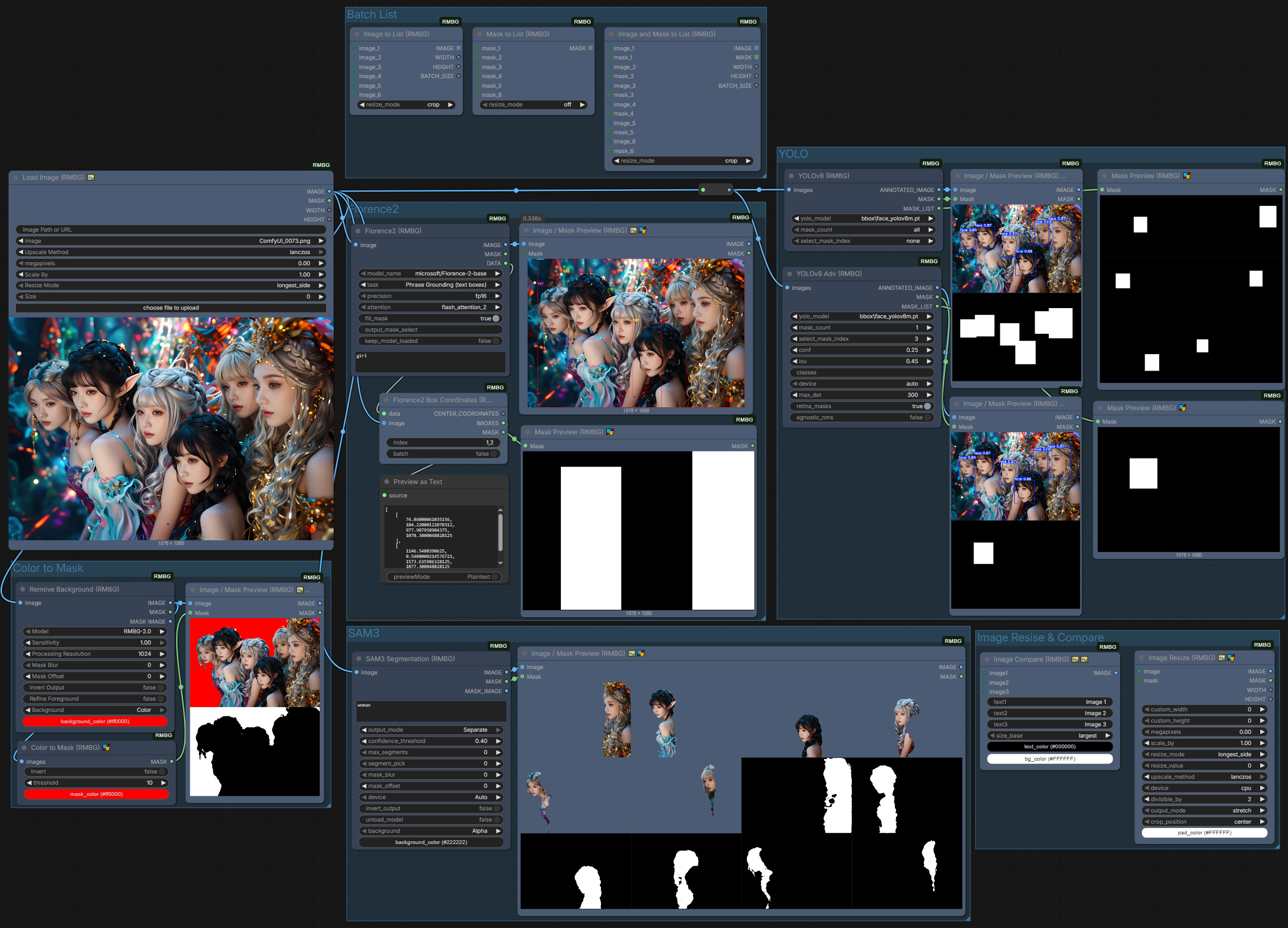
- 2025/12/09: Update ComfyUI-RMBG to v2.9.6 ( update.md )
- 2025/11/25: Update ComfyUI-RMBG to v2.9.5 SAM3 Segmentaion bug fixed( update.md )
- 2025/11/24: Update ComfyUI-RMBG to v2.9.4 SAM3 Segmentaion ( update.md )
- 2025/10/05: Update ComfyUI-RMBG to v2.9.3 ( update.md )
- 2025/09/30: Update ComfyUI-RMBG to v2.9.2 ( update.md )
- Add new BiRefNet_toonOut Model
-
Updated Imagestitch
- 2025/09/12: Update ComfyUI-RMBG to v2.9.1 ( update.md )
- 2025/08/18: Update ComfyUI-RMBG to v2.9.0 ( update.md )
- Added
SDMatte Mattingnode
- Added
-
2025/08/11: Update ComfyUI-RMBG to v2.8.0 ( update.md )
- Added
SAM2Segmentnode for text-prompted segmentation with the latest Facebook Research SAM2 technology. - Enhanced color widget support across all nodes
- Added
-
2025/08/06: Update ComfyUI-RMBG to v2.7.1 ( update.md )
- Enhanced LoadImage into three distinct nodes to meet different needs, all supporting direct image loading from local paths or URLs
- Completely redesigned ImageStitch node compatible with ComfyUI’s native functionality
- Fixed background color handling issues reported by users
- 2025/07/15: Update ComfyUI-RMBG to v2.6.0 ( update.md )
-
Added
Kontext Refence latent Masknode, Which uses a reference latent and mask for precise region conditioning. -
2025/07/11: Update ComfyUI-RMBG to v2.5.2 ( update.md )
-
2025/07/07: Update ComfyUI-RMBG to v2.5.1 ( update.md )
-
2025/07/01: Update ComfyUI-RMBG to v2.5.0 ( update.md )
- Added
MaskOverlay,ObjectRemover,ImageMaskResizenew nodes. - Added 2 BiRefNet models:
BiRefNet_lite-mattingandBiRefNet_dynamic -
Added batch image support for
Segment_v1andSegment_V2nodes - 2025/06/01: Update ComfyUI-RMBG to v2.4.0 ( update.md )
- Added
CropObject,ImageCompare,ColorInputnodes and new Segment V2 (see update.md for details)
- Added
- 2025/05/15: Update ComfyUI-RMBG to v2.3.2 ( update.md )
- 2025/05/02: Update ComfyUI-RMBG to v2.3.1 ( update.md )
- 2025/05/01: Update ComfyUI-RMBG to v2.3.0 ( update.md )
- Added new nodes: IC-LoRA Concat, Image Crop
- Added resizing options for Load Image: Longest Side, Shortest Side, Width, and Height, enhancing flexibility.
- 2025/04/05: Update ComfyUI-RMBG to v2.2.1 ( update.md )
- 2025/04/05: Update ComfyUI-RMBG to v2.2.0 ( update.md )
- Added new nodes: Image Combiner, Image Stitch, Image/Mask Converter, Mask Enhancer, Mask Combiner, and Mask Extractor
- Fixed compatibility issues with transformers v4.49+
- Fixed i18n translation errors
- Added mask image output to segment nodes
- 2025/03/21: Update ComfyUI-RMBG to v2.1.1 ( update.md )
- Enhanced compatibility with Transformers
- 2025/03/19: Update ComfyUI-RMBG to v2.1.0 ( update.md )
- Integrated internationalization (i18n) support for multiple languages.
- Improved user interface for dynamic language switching.
- Enhanced accessibility for non-English speaking users with fully translatable features.
https://github.com/user-attachments/assets/7faa00d3-bbe2-42b8-95ed-2c830a1ff04f
-
2025/03/13: Update ComfyUI-RMBG to v2.0.0 ( update.md )
- Added Image and Mask Tools improved functionality.
- Enhanced code structure and documentation for better usability.
- Introduced a new category path:
🧪AILab/🛠️UTIL/🖼️IMAGE.
-
2025/02/24: Update ComfyUI-RMBG to v1.9.3 Clean up the code and fix the issue ( update.md )
- 2025/02/21: Update ComfyUI-RMBG to v1.9.2 with Fast Foreground Color Estimation ( update.md )
- Added new foreground refinement feature for better transparency handling
- Improved edge quality and detail preservation
- Enhanced memory optimization
- 2025/02/20: Update ComfyUI-RMBG to v1.9.1 ( update.md )
- Changed repository for model management to the new repository and Reorganized models files structure for better maintainability.
- 2025/02/19: Update ComfyUI-RMBG to v1.9.0 with BiRefNet model improvements ( update.md )
- Enhanced BiRefNet model performance and stability
- Improved memory management for large images
-
2025/02/07: Update ComfyUI-RMBG to v1.8.0 with new BiRefNet-HR model ( update.md )
- Added a new custom node for BiRefNet-HR model.
- Support high resolution image processing (up to 2048x2048)
-
2025/02/04: Update ComfyUI-RMBG to v1.7.0 with new BEN2 model ( update.md )
- Added a new custom node for BEN2 model.
-
2025/01/22: Update ComfyUI-RMBG to v1.6.0 with new Face Segment custom node ( update.md )
- Added a new custom node for face parsing and segmentation
- Support for 19 facial feature categories (Skin, Nose, Eyes, Eyebrows, etc.)
- Precise facial feature extraction and segmentation
- Multiple feature selection for combined segmentation
- Same parameter controls as other RMBG nodes
-
2025/01/05: Update ComfyUI-RMBG to v1.5.0 with new Fashion and accessories Segment custom node ( update.md )
- Added a new custom node for fashion segmentation.
-
2025/01/02: Update ComfyUI-RMBG to v1.4.0 with new Clothes Segment node ( update.md )
- Added intelligent clothes segmentation with 18 different categories
- Support multiple item selection and combined segmentation
- Same parameter controls as other RMBG nodes
- 2024/12/29: Update ComfyUI-RMBG to v1.3.2 with background handling ( update.md )
- Enhanced background handling to support RGBA output when “Alpha” is selected.
- Ensured RGB output for all other background color selections.
- 2024/12/25: Update ComfyUI-RMBG to v1.3.1 with bug fixes ( update.md )
- Fixed an issue with mask processing when the model returns a list of masks.
- Improved handling of image formats to prevent processing errors.
-
2024/12/23: Update ComfyUI-RMBG to v1.3.0 with new Segment node ( update.md )
- Added text-prompted object segmentation
- Support both tag-style (“cat, dog”) and natural language (“a person wearing red jacket”) prompts
- Multiple models: SAM (vit_h/l/b) and GroundingDINO (SwinT/B) (as always model file will be downloaded automatically when first time using the specific model)
- This update requires install requirements.txt
-
2024/12/12: Update Comfyui-RMBG ComfyUI Custom Node to v1.2.2 ( update.md )
-
2024/12/02: Update Comfyui-RMBG ComfyUI Custom Node to v1.2.1 ( update.md )
-
2024/11/29: Update Comfyui-RMBG ComfyUI Custom Node to v1.2.0 ( update.md )
- 2024/11/21: Update Comfyui-RMBG ComfyUI Custom Node to v1.1.0 ( update.md )
Features
- Background Removal (RMBG Node)
- Multiple models: RMBG-2.0, INSPYRENET, BEN, BEN2
- Various background options
- Batch processing support
- Object Segmentation (Segment Node)
- Text-prompted object detection
- Support both tag-style and natural language inputs
- High-precision segmentation with SAM
- Flexible parameter controls
- SAM2 Segmentation
- Text-prompted segmentation with the latest SAM2 models (Tiny/Small/Base+/Large)
- Automatic model download on first use, with manual download option
Installation
Method 1. install on ComfyUI-Manager, search Comfyui-RMBG and install
install requirment.txt in the ComfyUI-RMBG folder
./ComfyUI/python_embeded/python -m pip install -r requirements.txt
[!NOTE] Windows desktop app: if the app crashes after install, set
PYTHONUTF8=1before installing requirements, then retry.
[!NOTE] YOLO nodes require the optional
ultralyticspackage. Install it only if you need YOLO to avoid dependency conflicts:./ComfyUI/python_embeded/python -m pip install ultralytics --no-deps.
[!TIP] Note: If your environment cannot install dependencies with the system Python, you can use ComfyUI’s embedded Python instead. Example (embedded Python):
./ComfyUI/python_embeded/python.exe -m pip install --no-user --no-cache-dir -r requirements.txt
Method 2. Clone this repository to your ComfyUI custom_nodes folder:
  cd ComfyUI/custom_nodes
  git clone https://github.com/1038lab/ComfyUI-RMBG
install requirment.txt in the ComfyUI-RMBG folder
./ComfyUI/python_embeded/python -m pip install -r requirements.txt
Method 3: Install via Comfy CLI
Ensure pip install comfy-cli is installed.
Installing ComfyUI comfy install (if you don’t have ComfyUI Installed)
install the ComfyUI-RMBG, use the following command:
comfy node install ComfyUI-RMBG
install requirment.txt in the ComfyUI-RMBG folder
./ComfyUI/python_embeded/python -m pip install -r requirements.txt
4. Manually download the models:
- The model will be automatically downloaded to
ComfyUI/models/RMBG/when first time using the custom node. - Manually download the RMBG-2.0 model by visiting this link, then download the files and place them in the
/ComfyUI/models/RMBG/RMBG-2.0folder. - Manually download the INSPYRENET models by visiting the link, then download the files and place them in the
/ComfyUI/models/RMBG/INSPYRENETfolder. - Manually download the BEN model by visiting the link, then download the files and place them in the
/ComfyUI/models/RMBG/BENfolder. - Manually download the BEN2 model by visiting the link, then download the files and place them in the
/ComfyUI/models/RMBG/BEN2folder. - Manually download the BiRefNet-HR by visiting the link, then download the files and place them in the
/ComfyUI/models/RMBG/BiRefNet-HRfolder. - Manually download the SAM models by visiting the link, then download the files and place them in the
/ComfyUI/models/SAMfolder. - Manually download the SAM2 models by visiting the link, then download the files (e.g.,
sam2.1_hiera_tiny.safetensors,sam2.1_hiera_small.safetensors,sam2.1_hiera_base_plus.safetensors,sam2.1_hiera_large.safetensors) and place them in the/ComfyUI/models/sam2folder. - Manually download the GroundingDINO models by visiting the link, then download the files and place them in the
/ComfyUI/models/grounding-dinofolder. - Manually download the Clothes Segment model by visiting the link, then download the files and place them in the
/ComfyUI/models/RMBG/segformer_clothesfolder. - Manually download the Fashion Segment model by visiting the link, then download the files and place them in the
/ComfyUI/models/RMBG/segformer_fashionfolder. - Manually download BiRefNet models by visiting the link, then download the files and place them in the
/ComfyUI/models/RMBG/BiRefNetfolder. - Manually download SDMatte safetensors models by visiting the link, then download the files and place them in the
/ComfyUI/models/RMBG/SDMattefolder.
Usage
RMBG Node
Optional Settings :bulb: Tips
| Optional Settings | :memo: Description | :bulb: Tips |
|———————-|—————————————————————————–|—————————————————————————————————|
| Sensitivity | Adjusts the strength of mask detection. Higher values result in stricter detection. | Default value is 0.5. Adjust based on image complexity; more complex images may require higher sensitivity. |
| Processing Resolution | Controls the processing resolution of the input image, affecting detail and memory usage. | Choose a value between 256 and 2048, with a default of 1024. Higher resolutions provide better detail but increase memory consumption. |
| Mask Blur | Controls the amount of blur applied to the mask edges, reducing jaggedness. | Default value is 0. Try setting it between 1 and 5 for smoother edge effects. |
| Mask Offset | Allows for expanding or shrinking the mask boundary. Positive values expand the boundary, while negative values shrink it. | Default value is 0. Adjust based on the specific image, typically fine-tuning between -10 and 10. |
| Background | Choose output background color | Alpha (transparent background) Black, White, Green, Blue, Red |
| Invert Output | Flip mask and image output | Invert both image and mask output |
| Refine Foreground | Use Fast Foreground Color Estimation to optimize transparent background | Enable for better edge quality and transparency handling |
| Performance Optimization | Properly setting options can enhance performance when processing multiple images. | If memory allows, consider increasing process_res and mask_blur values for better results, but be mindful of memory usage. |
Basic Usage
- Load
RMBG (Remove Background)node from the🧪AILab/🧽RMBGcategory - Connect an image to the input
- Select a model from the dropdown menu
- select the parameters as needed (optional)
- Get two outputs:
- IMAGE: Processed image with transparent, black, white, green, blue, or red background
- MASK: Binary mask of the foreground
Parameters
sensitivity: Controls the background removal sensitivity (0.0-1.0)process_res: Processing resolution (512-2048, step 128)mask_blur: Blur amount for the mask (0-64)mask_offset: Adjust mask edges (-20 to 20)background: Choose output background colorinvert_output: Flip mask and image outputoptimize: Toggle model optimization
Segment Node
- Load
Segment (RMBG)node from the🧪AILab/🧽RMBGcategory - Connect an image to the input
- Enter text prompt (tag-style or natural language)
- Select SAM and GroundingDINO models
- Adjust parameters as needed:
- Threshold: 0.25-0.35 for broad detection, 0.45-0.55 for precision
- Mask blur and offset for edge refinement
- Background color options
About Models
## RMBG-2.0
RMBG-2.0 is is developed by BRIA AI and uses the BiRefNet architecture which includes:
- High accuracy in complex environments
- Precise edge detection and preservation
- Excellent handling of fine details
- Support for multiple objects in a single image
- Output Comparison
- Output with background
- Batch output for video
The model is trained on a diverse dataset of over 15,000 high-quality images, ensuring:
- Balanced representation across different image types
- High accuracy in various scenarios
- Robust performance with complex backgrounds
## INSPYRENET
INSPYRENET is specialized in human portrait segmentation, offering:
- Fast processing speed
- Good edge detection capability
- Ideal for portrait photos and human subjects
## BEN
BEN is robust on various image types, offering:
- Good balance between speed and accuracy
- Effective on both simple and complex scenes
- Suitable for batch processing
## BEN2
BEN2 is a more advanced version of BEN, offering:
- Improved accuracy and speed
- Better handling of complex scenes
- Support for more image types
- Suitable for batch processing
## BIREFNET MODELS
BIREFNET is a powerful model for image segmentation, offering:
- BiRefNet-general purpose model (balanced performance)
- BiRefNet_512x512 model (optimized for 512x512 resolution)
- BiRefNet-portrait model (optimized for portrait/human matting)
- BiRefNet-matting model (general purpose matting)
- BiRefNet-HR model (high resolution up to 2560x2560)
- BiRefNet-HR-matting model (high resolution matting)
- BiRefNet_lite model (lightweight version for faster processing)
- BiRefNet_lite-2K model (lightweight version for 2K resolution)
## SAM
SAM is a powerful model for object detection and segmentation, offering:
- High accuracy in complex environments
- Precise edge detection and preservation
- Excellent handling of fine details
- Support for multiple objects in a single image
- Output Comparison
- Output with background
- Batch output for video
## SAM2
SAM2 is the latest segmentation model family designed for efficient, high-quality text-prompted segmentation:
- Multiple sizes: Tiny, Small, Base+, Large
- Optimized inference with strong accuracy
- Automatic download on first use; manual placement supported in `ComfyUI/models/sam2`
## GroundingDINO
GroundingDINO is a model for text-prompted object detection and segmentation, offering:
- High accuracy in complex environments
- Precise edge detection and preservation
- Excellent handling of fine details
- Support for multiple objects in a single image
- Output Comparison
- Output with background
- Batch output for video
## BiRefNet Models
- BiRefNet-general purpose model (balanced performance)
- BiRefNet_512x512 model (optimized for 512x512 resolution)
- BiRefNet-portrait model (optimized for portrait/human matting)
- BiRefNet-matting model (general purpose matting)
- BiRefNet-HR model (high resolution up to 2560x2560)
- BiRefNet-HR-matting model (high resolution matting)
- BiRefNet_lite model (lightweight version for faster processing)
- BiRefNet_lite-2K model (lightweight version for 2K resolution)
Requirements
- ComfyUI
- Python 3.10+
- Required packages (automatically installed):
- huggingface-hub>=0.19.0
- transparent-background>=1.1.2
- segment-anything>=1.0
- groundingdino-py>=0.4.0
- opencv-python>=4.7.0
- onnxruntime>=1.15.0
- onnxruntime-gpu>=1.15.0
- protobuf>=3.20.2,<6.0.0
- hydra-core>=1.3.0
- omegaconf>=2.3.0
- iopath>=0.1.9
SDMatte models (manual download)
- Auto-download on first run to
models/RMBG/SDMatte/ - If network restricted, place weights manually:
models/RMBG/SDMatte/SDMatte.safetensors(standard) orSDMatte_plus.safetensors(plus)- Components (config files) are auto-downloaded; if needed, mirror the structure from the Hugging Face repo to
models/RMBG/SDMatte/(scheduler/,text_encoder/,tokenizer/,unet/,vae/)
Troubleshooting (short)
- 401 error when initializing GroundingDINO / missing
models/sam2:- Delete
%USERPROFILE%\.cache\huggingface\token(and%USERPROFILE%\.huggingface\tokenif present) - Ensure no
HF_TOKEN/HUGGINGFACE_TOKENenv vars are set - Re-run; public repos download anonymously (no login required)
- Delete
- Preview shows “Required input is missing: images”:
- Ensure image outputs are connected and upstream nodes ran successfully
Credits
- RMBG-2.0: https://huggingface.co/briaai/RMBG-2.0
- INSPYRENET: https://github.com/plemeri/InSPyReNet
- BEN: https://huggingface.co/PramaLLC/BEN
- BEN2: https://huggingface.co/PramaLLC/BEN2
- BiRefNet: https://huggingface.co/ZhengPeng7
- SAM: https://huggingface.co/facebook/sam-vit-base
- GroundingDINO: https://github.com/IDEA-Research/GroundingDINO
- Clothes Segment: https://huggingface.co/mattmdjaga/segformer_b2_clothes
-
SDMatte: https://github.com/vivoCameraResearch/SDMatte
- Created by: AILab
Star History
</a>
If this custom node helps you or you like my work, please give me ⭐ on this repo! It’s a great encouragement for my efforts!
License
GPL-3.0 License